
One of the big problems I hear people complain about is that it burns too much money.
I have to admit that this does happen from time to time!
But then again, if you are not careful when doing so, this can be the case with any other ad network.
So, there’s no need to avoid GDN simply because of excessive concern.
But you need to keep an eye on certain settings in your account, which can cost your budget like water if you’re not careful.
So, what exactly are the settings to look out for?
In this article, I’ll highlight four settings to keep an eye on to help you keep your ad spend within reasonable limits for GDN.
1. Automated Targeting
Recently, the automated bid targeting setting has been causing us a lot of trouble.
When Google introduced the new user interface, it also quietly set GDN campaigns to automated bid targeting by default.
There are two modes of automated bid targeting: conservative and aggressive.
By default, conservative targeting is enabled for Display campaigns, except for Android App Promotion campaigns, which have aggressive mode enabled by default.
From the name alone, you may think that the target positioning of the conservative model is really “conservative”.
But from our practical experience, this is not always the case.
Google has previously alerted us to this change, so we have been keeping a close eye on the account.
Even so, we were surprised by the significant increase in traffic on one of our clients’ accounts.
Here’s how the account has been in traffic activity over the past 30 days:
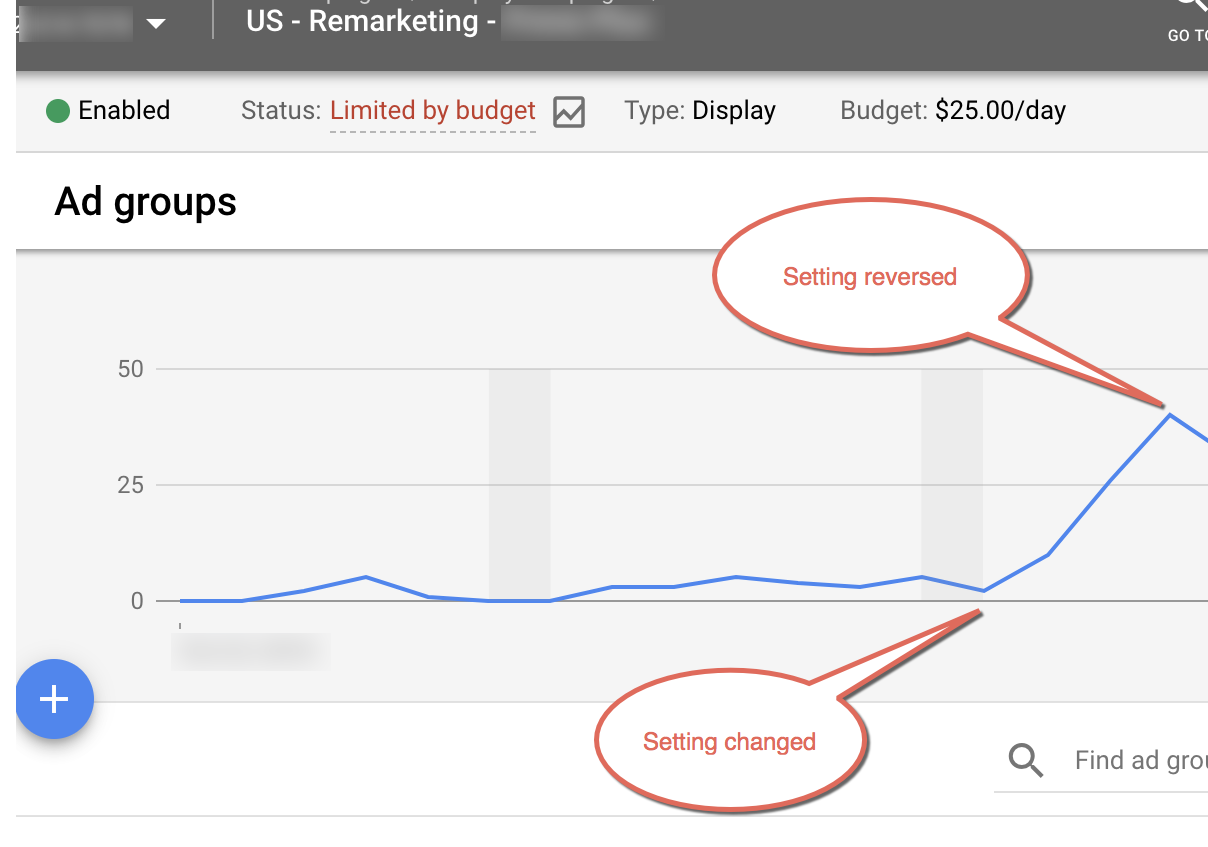
As you can see in the chart below, there was a significant spike in clicks when Google automatically set the account to a “conservative” automated targeting model.
And when we undo this setting, the number of clicks will drop.
So, why are the clicks so high?
We took a closer look.
It turned out that in automated targeting mode, ads were displayed thousands of times.
As a result, the number of ad clicks increased from about 5 to 40 per day!
Even more shockingly, we found out that the ad was on a dating site – and our ad (and the landing page for this remarketing campaign) was promoting ultrasound medical devices!
At first, I wondered if I had gone wrong when setting up my campaign. After all, strange ad placements in remarketing are not unheard of.
But this is not the case, the only change is that Google has included the campaign in an automated targeting model, and it is set to be “conservative”.
This is surprising because when you look at the description of “conservative automated targeting” for remarketing in Google Ads Help, it makes sense:
Remarketing. If your remarketing lists target people who visit Japanese travel websites, conservative targeting may extend the scope to people visiting Tokyo travel destination websites. If the data supports it, aggressive targeting may expand further – it can be scaled independently of manual targeting based on predicted conversion rates.
However, this still does not explain the association between ultrasound equipment and Match.com, a well-known dating site.
How to change your targeting settings
Needless to say, we acted quickly and changed this setting. It turned out that this setting was really hard to find!
To turn this feature off, go to the ad group level.
Here’s how Google provides a how-to guide:
Change the auto-location settings
- In the navigation panel, click Display campaigns.
- Find your campaign and click in.
- Click the ad group that you want to adjust targeting.
- Click “Settings” in the page menu.
- Click Edit ad group targeting.
- Under “Automated targeting,” select one of three options:
- No automated targeting: Requires manual targeting of ads.
- Conservative automation: Focusing on the context closely related to the ad group helps keep cost per customer below current levels. Can be used for remarketing.
- Aggressive automation: Make more adjustments to targeting to reach more customers, which can be used for remarketing.
Obviously, to turn off automated targeting, you should select “No automated targeting”.
Since Google is gradually rolling out this feature, it is challenging to capture these changes.
You basically need to continuously audit accounts to spot as soon as automated targeting takes effect — and act on them before they spike in clicks.
- Geographical positioning
In the Google Display Network (GDN), geo-targeting offers several options. Google said:
The geographic option allows you to include or exclude users based on:
- The geographic location where they might actually be
- Locations where they show interest
By default, geographic targeting includes both actual and geographic locations of interest, but advanced advertisers can use these options to limit targeting to one of them.
For example, let’s say you sell helicopter sightseeing tours in Las Vegas. You can choose to target your ads to people who are physically located in Las Vegas, or people who are located elsewhere but have shown interest in Las Vegas (or both).
If your sales analysis shows that most people sign up for these tours after arriving in the city (rather than in advance), then it makes sense to limit your targeting to “people in my location.”
However, the Google Display Network defaults to a broader setting, which is “people who are in or interested in my location.”
For Search Network campaigns, we usually keep this broad setting. But in the Google Display Network, we usually narrow down to just “people in my location.”
Otherwise, we tend to see an increase in clicks but not a corresponding increase in conversion rates.
- Device positioning
You may have good reasons to run ads on mobile apps and devices. If so, then go ahead.
But in the Google Display Network, we often exclude these devices, or lower our bids because we don’t perform well on them.
We are not sure why. Probably because many of our clients are in business-to-business (B2B) sales, where the sales process is more complex.
For example, no one buys complex, expensive enterprise-grade software on a mobile device.
We also believe that display ads on mobile devices often experience a lot of “misses” – where users accidentally click on an ad when they were just trying to scroll through the page. (I often encounter this situation!) )
So, by intentionally not targeting mobile apps or devices on the Google Display Network, you can save some budget.
- Content and website category exclusions
Content and website category exclusions aren’t new, but they’re important and worth mentioning.
Once you’ve set up your Google Display Network account, immediately go to the “Site category exclusions” option in your settings to exclude any websites (or website categories) that you don’t want to show ads to.
Google’s explanation of content exclusions is as follows:
Content exclusions allow you to opt out of showing ads next to websites, videos, and mobile apps in certain categories that may not be appropriate for your brand or meet your advertising goals.
Categories include tragedy and conflict, profane content, and sexually suggestive content.
You can also upload a list of specific websites that you want to exclude. We’ve done this for some of our clients to ensure that their ads don’t appear on websites that go against their core values.
Fortunately, this task has become much easier lately.
Now you can set these exclusions at the account level, not just the campaign level, which is great:
About account-level content exclusions
Account-level content exclusions allow you to set exclusions that apply to your entire account. This means that you only need to set content exclusions once in your account settings, and they will be applied to all campaigns in your account, including existing and new campaigns.
Note: Account-level content exclusion controls are only available in the new Google Ads experience.
By excluding these sites, you can help reduce your ad spend.
Additionally, if your ad appears on a website that contradicts your company’s position, the chances of that ad converting are slim.
Take control of your budget with Google Display Network settings
While all ad network settings are important, the above four settings are especially important for reducing ad spend on the Google Display Network.
One poorly set up can lead to a massive spike in clicks!